Using caps lock for voice transcription (macOS)
I’m trying to speak more to my computer because it’s so much faster than typing when interacting with AI. I still cling to typing when it’s just way slower. My ape brain chooses the path of least resistance.
So I started cutting any friction I saw that hindered my use of voice input.
One point of friction was the shortcut key to record. I needed one I would remember in flow state. The one I wanted was Caps Lock - that big juicy button I never use - but it’s not available by default.
The majority of voice transcription apps I tried don’t support caps lock as the trigger key. I could install libraries and apps that enable keyboard shortcuts but the reliable ones tended to be pretty huge toolkits that felt like overkill for this one need.
It turns out a tiny amount of code can do this.
Caps lock as a hotkey in three bash commands
macOS has a built-in tool - hidutil - which doesn’t require special privileges and can remap one key to another key.
1. Remap caps lock with F5
- hidutil doesn’t support key combinations, just one key to another key.
- you need to sacrifice one key for this. I chose F5, but you could choose any key.
- open a terminal and paste this in to remap:
hidutil property --set '{"UserKeyMapping":[{
"HIDKeyboardModifierMappingSrc":0x700000039,
"HIDKeyboardModifierMappingDst":0x70000003E
}]}'
Now, pressing caps lock (0x39) will trigger an F5 (0x3E) keypress. But this is just written to temporary state and will be gone after you restart your computer.
(F5 seemed an obvious choice because it has a microphone icon. It is also intended to represent victory over that key being tied to the native dictation service)
2. Preserve this config through reboots
Creating a LaunchAgent that registers the same key mapping above is the way to do this every time you reboot your machine.
mkdir -p ~/Library/LaunchAgents && cat > ~/Library/LaunchAgents/com.local.capslock-remap.plist << 'EOF'
<?xml version="1.0" encoding="UTF-8"?>
<!DOCTYPE plist PUBLIC "-//Apple//DTD PLIST 1.0//EN" "http://www.apple.com/DTDs/PropertyList-1.0.dtd">
<plist version="1.0">
<dict>
    <key>Label</key>
    <string>com.local.capslock-remap</string>
    <key>ProgramArguments</key>
    <array>
        <string>/usr/bin/hidutil</string>
        <string>property</string>
        <string>--set</string>
        <string>{"UserKeyMapping":[{"HIDKeyboardModifierMappingSrc":0x700000039,"HIDKeyboardModifierMappingDst":0x70000003E}]}</string>
    </array>
    <key>RunAtLoad</key>
    <true/>
</dict>
</plist>
EOF
3. Register the new launchagent
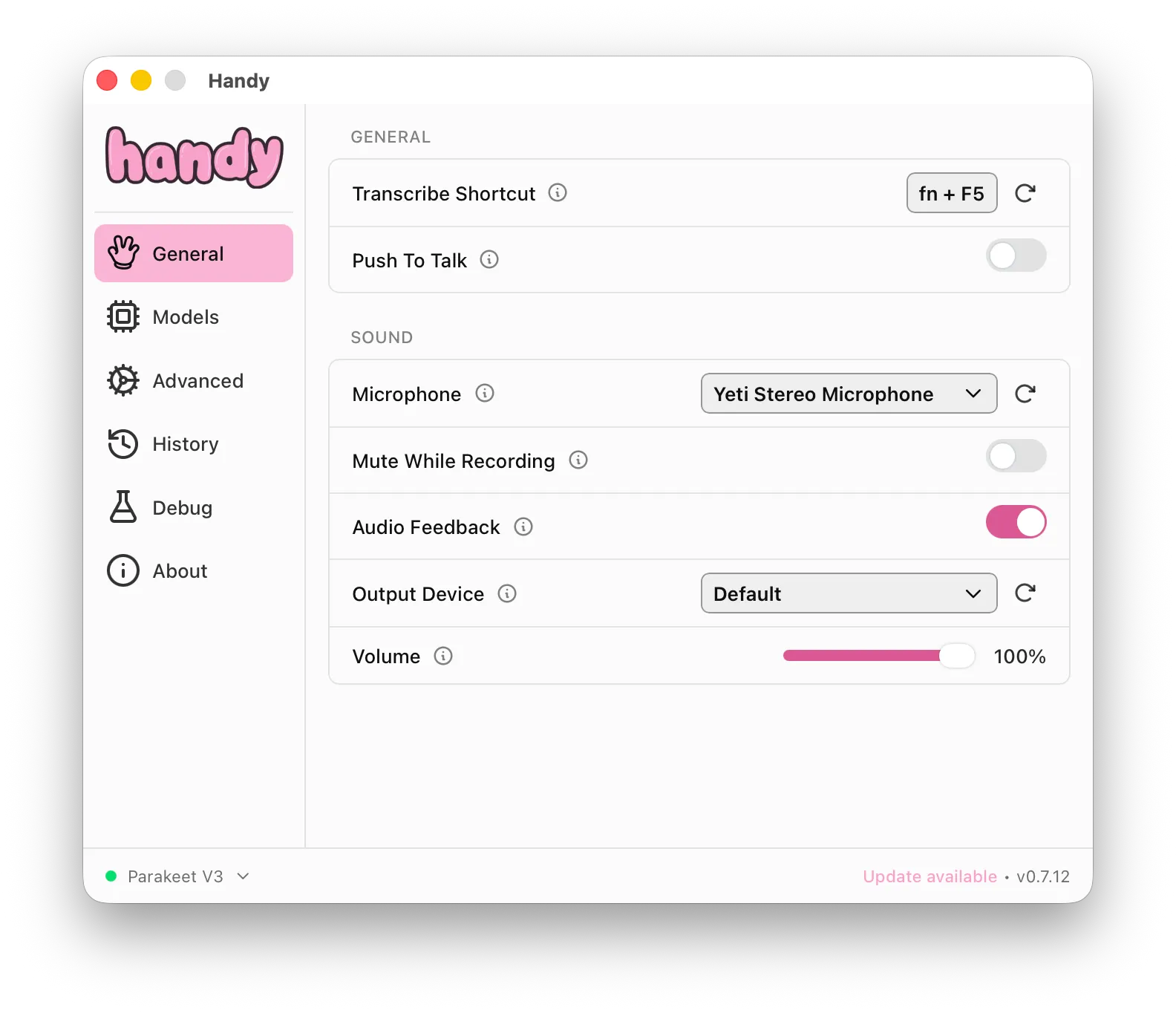
launchctl bootstrap gui/$(id -u) ~/Library/LaunchAgents/com.local.capslock-remap.plistNow you can use Caps Lock as a shortcut key in your voice transcription app
If you need to remove or undo
Remove the keymapping:
hidutil property --set '{"UserKeyMapping":[{}]}'Unload the LaunchAgent:
launchctl bootout gui/$(id -u) ~/Library/LaunchAgents/com.local.capslock-remap.plistA note on the light
Leaving aside the question of why on earth we still need a caps lock light, I did try to get the caps lock light working after this. I thought it would be like a retro on-air recording indicator.
I did get the light to work, but it was gross. It required two macOS permissions that make users jump through hoops to enable (and keep enabled). The caps lock light would fall out of sync with the recording state at several times a day (because pressing Escape cancels recording too).
The complexity just wasn’t worth it. Instead, all speech to text apps I’ve used have visual indicators in the menu bar or the top of the screen and I look there. Keep simple things simple.